Containers (OCI)
BETARoute Docker, crane, and oras through a container firewall and every image you pull or push is checked for vulnerable OS packages, malware, and leaked credentials. Setup, Docker Hub, how rules apply to images, and troubleshooting.
A container firewall sits between your container clients and the registries you pull images from, Docker Hub by default. Every pull passes through your rules before the image is handed over: the OS packages inside the image are checked for known vulnerabilities, every layer is scanned for malware and leaked secrets, and new images can be held back until they reach a minimum age. It is not a registry of its own: it speaks the OCI distribution protocol that Docker and other container clients already use, and fetches images from your upstream registries on your behalf.
Enabled per organization
Container firewalls are in beta and are switched on per organization. To use them, contact Support and we will enable them for you. Until then, OCI is not offered as an ecosystem when you create a firewall.
Before you start
You need:
- Container firewalls enabled for your organization (see above).
- A firewall with the OCI ecosystem. Create it as in the Quickstart, choosing OCI as the ecosystem. Its default upstream is Docker Hub.
- An access token to log in with.
- Docker Hub credentials on the firewall's upstream. Optional, but Docker Hub rate-limits anonymous pulls, and the firewall pulls for everyone who uses it. See Upstreams.
- A publish target, only if you push images through the firewall. See Push.
- docker, crane, or oras. These are the clients the firewall is tested with.
How it works
A container client sends each pull to the registry named at the start of the image name, the part before the first /. For Docker Hub that is docker.io, which Docker fills in when you write only alpine:3.20. To pull through a container firewall, you put the container firewall endpoint in that place and log in to it.
Container clients only let you change the registry's host name, so there is no room for a firewall ID in the address. You name the firewall in the login instead: the username is <namespace-id>/<firewall-id>, and the password is an access token. After that, only the host in your image names changes. On each pull, the firewall fetches the image from its upstream, Docker Hub by default, and your client gets it only if it passes your rules.
The examples use <namespace-id> and <firewall-id> placeholders. Replace them with IDs, not with namespace or firewall names. The firewall's Setup tab shows these commands with both values already filled in.
Container firewall endpoint
eu-sov-1.bytesafecloud.euThis host goes in the login, in every image name you pull or push, and in Dockerfiles. It has no path.
Log in
The username names the container firewall to pull through, as <namespace-id>/<firewall-id>. The password is an access token.
echo "$BYTESAFE_TOKEN" | docker login eu-sov-1.bytesafecloud.eu \
-u <namespace-id>/<firewall-id> --password-stdincrane auth login eu-sov-1.bytesafecloud.eu \
-u <namespace-id>/<firewall-id> -p "$BYTESAFE_TOKEN"echo "$BYTESAFE_TOKEN" | oras login eu-sov-1.bytesafecloud.eu \
-u <namespace-id>/<firewall-id> --password-stdinLogin checks both the token and the firewall ID, so a typo fails here rather than later as a missing image.
Pull
After logging in, put the endpoint in front of the image name:
docker pull eu-sov-1.bytesafecloud.eu/alpine:3.20crane pull eu-sov-1.bytesafecloud.eu/alpine:3.20 alpine.taroras pull eu-sov-1.bytesafecloud.eu/<repository>:<tag>In a Dockerfile, FROM alpine:3.20 becomes FROM eu-sov-1.bytesafecloud.eu/alpine:3.20. Change image references in deployment manifests the same way. Docker's registry-mirrors daemon setting is not supported, so the host has to be in each image reference.
Default repository prefix
Docker Hub's official images belong to the library namespace, so the full name of alpine is library/alpine. Docker adds library/ on its own when it talks to Docker Hub, but sends the name exactly as written to any other host, including the firewall.
A container firewall can add it for you. Its Default repository prefix goes in front of every one-part image name, so a pull of alpine becomes library/alpine before rules and upstreams see it. The dashboard fills in library when you create a container firewall. Clear the field to pull one-part names exactly as written; Docker Hub's official images then need their full library/ name. In the API and config files the field is defaultRepositoryPrefix.
The prefix changes what your rules match. With the library prefix, a rule for Alpine names library/alpine, not alpine, however the image was pulled.
Name the firewall in the image
The short image names above go to the firewall named in your login. You can also name the firewall in the image itself, between the host and the repository:
| Short form | Full form | |
|---|---|---|
| Image name | eu-sov-1.bytesafecloud.eu/alpine:3.20 | eu-sov-1.bytesafecloud.eu/<namespace-id>/<firewall-id>/alpine:3.20 |
| Firewall used | The one named in the login | The one named in the image |
| Pull | Yes | Yes |
| Push | No | Yes, required |
The default repository prefix applies in both forms. When the image name and the login name different firewalls, the image name wins.
Several container firewalls on one machine
A container client keeps one login per host. All container firewalls share the same host, so a second docker login replaces the first, and short image names go to whichever firewall the latest login named.
To pull through more than one firewall from the same machine, use the full form:
docker pull eu-sov-1.bytesafecloud.eu/<namespace-id>/<prod-firewall-id>/alpine:3.20
docker pull eu-sov-1.bytesafecloud.eu/<namespace-id>/<test-firewall-id>/alpine:3.20
One login covers both. Log in as described above, or use __token__ as the username so the login names no firewall at all. The password is your access token either way.
Upstreams
A container firewall created without upstreams gets dockerhub (https://registry-1.docker.io) as its default upstream. Docker Hub rate-limits anonymous pulls, and the firewall pulls on behalf of everyone using it, so add Docker Hub credentials to that upstream: your Docker Hub username, and a Docker Hub access token as the password. See Manage upstream credentials.
To pull from other registries, add them as upstreams on the firewall's Upstreams tab. A container upstream's endpoint is the registry's origin, such as https://ghcr.io, with no /v2/ and no path.
Image names do not say which upstream to use. With Docker Hub and https://ghcr.io as upstreams, a pull of eu-sov-1.bytesafecloud.eu/myorg/tool:1.2 looks for myorg/tool:1.2 on both. When more than one upstream has the tag, the first one in the list serves it, unless an internal upstream has it too, in which case the internal one wins. Keep this in mind when a name exists on more than one registry.
Push
Pushing needs a publish target: the upstream that receives pushed images, usually your own registry. Its credentials must be allowed to push there. Without a publish target the firewall answers firewall has no publish target configured.
A push must use the full form, so the destination firewall is visible in the command rather than depending on the last login:
docker tag myapp:1.0 eu-sov-1.bytesafecloud.eu/<namespace-id>/<firewall-id>/myteam/myapp:1.0
docker push eu-sov-1.bytesafecloud.eu/<namespace-id>/<firewall-id>/myteam/myapp:1.0
The image lands on the publish target under the repository and tag you pushed. With a publish target of https://ghcr.io, the push above stores ghcr.io/myteam/myapp:1.0. The firewall forwards it with the upstream's credentials, not with your access token.
With a default repository prefix, give the image a two-part name such as myteam/myapp. A one-part name would be read back as library/myapp on the next pull, so the firewall refuses to push it.
Upload rules run when the tagged image is pushed, before it is forwarded. This is where secrets scanning and malware scanning check the image's layers, so an image carrying a leaked credential is stopped before it reaches your registry.
CI
Use a Service Access Token (SAT) stored as a CI secret, as described in Set up CI/CD pipelines, and log in with it before the build:
echo "$BYTESAFE_TOKEN" | docker login eu-sov-1.bytesafecloud.eu \
  -u <namespace-id>/<firewall-id> --password-stdin

docker build -t myapp .
The build pulls every base image whose Dockerfile FROM line names the firewall endpoint through the firewall. A FROM line without it still goes straight to Docker Hub.
How rules apply
A rule sees an image as a package name and a version: the repository, such as library/alpine, and the tag, such as 3.20. Each rule runs on one execution phase:
- Versions rules remove tags from the image's tag list. Most container clients pull a named tag directly and never read that list, so use download rules to block an image.
- Download rules run when an image is pulled. A blocked image is not served, and neither are its layers.
- Upload rules run when an image is pushed.
A tag is only a name, and several tags can point at the same image. The firewall checks an image under every tag it knows the image carries, so when latest points at the same image as a blocked 3.18, pulling latest is blocked as 3.18. A multi-platform image is checked per platform, when the client fetches that platform's image.
versionRange selectors are not available: tags are names, not versions, and a rule with a range is rejected when you save it. Use version with a * wildcard to match a naming pattern such as 3.18*.
Delay rules and image age
A delay rule measures an image's age from the created date in its image configuration. The build writes that date, not the registry, so an image built with a fixed or backdated date looks older than it is, and a delay rule lets it through.
Selector function support
Three selector functions apply to images. The others are not available on a container firewall; see the selector function matrix.
vulnerabilitieschecks only the OS packages installed in the image, not application dependencies such asnode_modulesor JAR files. See Vulnerabilities in images.malwarescans every layer, on download and upload. Theeffortoption has no effect: layers are always analyzed, so the first pull of an image nobody has pulled before takes longer.secretsscans every layer, on download as well as upload. A file deleted by a later build step is still in an earlier layer, and still reaches everyone who pulls the image.
Vulnerabilities in images
An image has no vulnerabilities of its own: they belong to the OS packages installed in it. The firewall reads the package databases in the image's layers (apk, dpkg, and rpm), identifies the distribution and release, and matches each package against that distribution's security advisories. Advisories for Debian do not match an Ubuntu package, and the reverse.
Which distributions are covered is listed under Ecosystem coverage.
Two limits:
- Only OS packages are checked. Application dependencies inside the image, such as
node_modulesor JAR files, are not read. Route those through their own ecosystem firewall when the image is built. - An image without a package database has no packages to check.
scratchand static distroless images pass avulnerabilitiesrule because there is nothing in them to match.
A distribution often scores a vulnerability differently from NVD, because it knows how the package is built and shipped. When the distribution publishes its own CVSS score, the rule's thresholds are compared against that score; see CVSS score.
Matching runs on every pull against the advisory data the firewall has at that moment, so an advisory published today blocks an image that passed yesterday.
Images in the dashboard
Each pulled image is recorded in Observations, with its platform and a count of known vulnerabilities in its OS packages. Select a row to open the image's page.
The firewall scans an image's layers only when a rule needs them: a download rule using vulnerabilities, malware, or secrets scans the image when it is pulled. Until then the image shows Not scanned, which is not the same as clean. A scan that could not read every layer also shows Not scanned. To scan an image without such a rule, open its page and select Scan image.
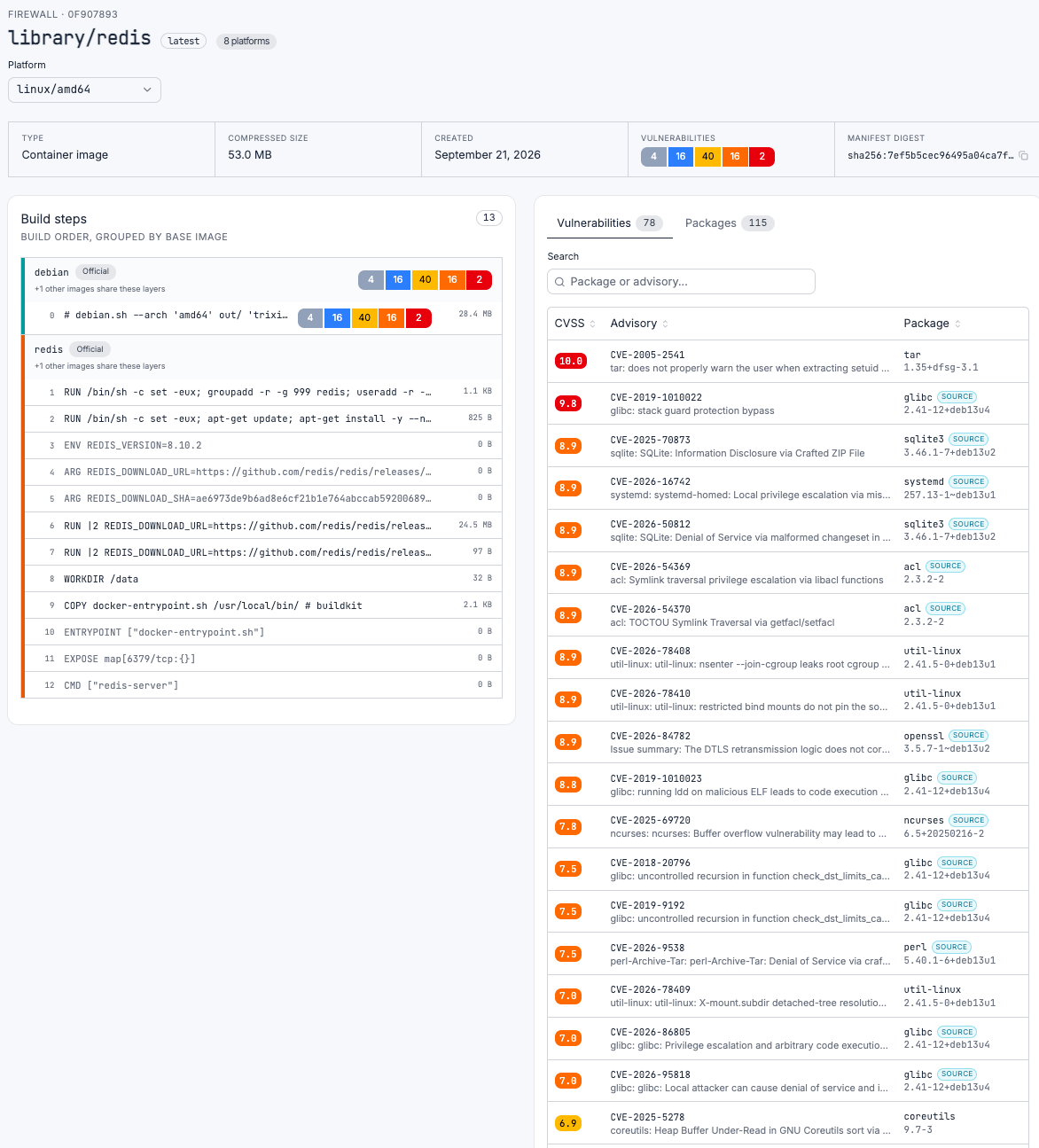
The image page shows:
- Facts about the image: type, compressed size, creation time, vulnerability count, and manifest digest. Multi-platform images have a platform selector.
- Build steps, grouped by the base image each run of layers came from, so you can see which vulnerabilities your own build added and which came with the base image.
- Vulnerabilities and Packages tabs. Select a build step to narrow both to what that step brought in. Where no fixed version exists, Fixed in shows the distribution's own status for the vulnerability.
Selecting a vulnerability opens its details, described in Research advisories and malware.
What a blocked pull looks like
The firewall answers a blocked pull as a missing image (404, MANIFEST_UNKNOWN), with a message naming the image, the phase, and a request ID:
library/alpine:3.18 blocked by download rule (request <request-id>)A versions rule reads blocked by version rule instead. A blocked push answers 403 with <repository>@<tag> upload blocked. See firewall log for request <request-id>. Look up the request ID in the logs to see which rule fired; see Investigate a blocked install.
Troubleshooting
If the message says blocked by, a rule matched: look up the request ID in the logs. If it does not, check the name. Without a default repository prefix, Docker Hub's official images need their full library/ name. Also check that the image exists on one of the firewall's upstreams under the name you used.
Docker Hub rate-limits anonymous pulls, and every pull through the firewall counts against the firewall's limit, not yours. Check the firewall log for upstream errors from dockerhub with status 429, and add Docker Hub credentials to the upstream.
The push used the short form. Pushes must use the full form: tag the image as eu-sov-1.bytesafecloud.eu/<namespace-id>/<firewall-id>/<repository>:<tag>.
The firewall has a default repository prefix, so a one-part name such as myapp would be read back as library/myapp on the next pull. Push to a two-part name such as myteam/myapp, or clear the default repository prefix.
Creating a container firewall fails with ecosystem "oci" is not enabled for this organization. Container firewalls are switched on per organization; contact Support to enable them.
Only on a self-hosted firewall served over plain HTTP. Docker assumes HTTPS for every registry except localhost, so add the firewall endpoint to the Docker daemon's insecure-registries setting, or serve the firewall over HTTPS.